How to Get More Google Reviews Using In-Store Screens and QR Codes
Before trying a new restaurant, salon, or shop, most people check Google first. They look at the star rating, read a few reviews, and decide in seconds whether to visit.
The problem is that happy customers rarely leave reviews on their own. They enjoy their visit, go home, and forget. Unhappy customers are often the ones who take the time to write.
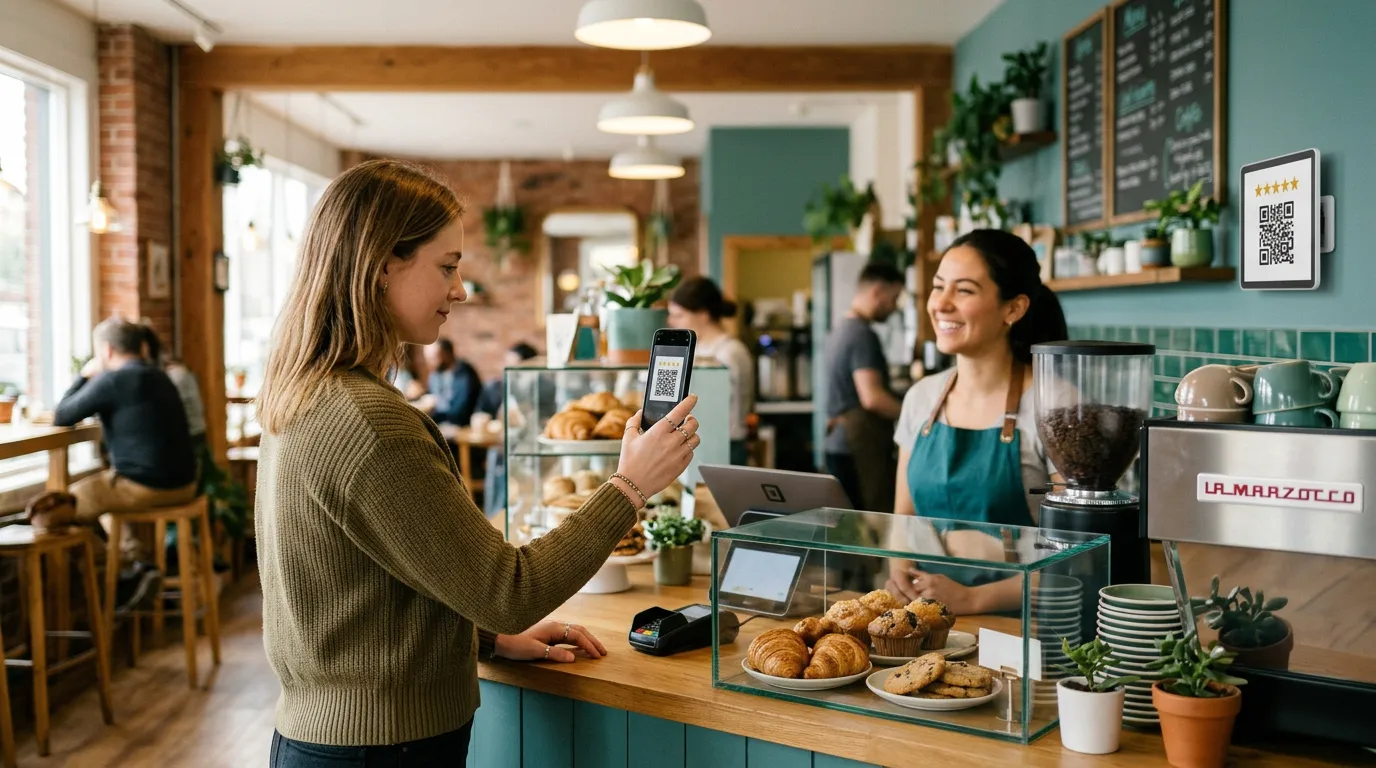
If you want to get more Google reviews, you need to ask, and make it easy. One of the simplest ways is a QR code on an in-store screen that takes customers straight to your review page.
This guide covers why reviews matter, how to create a review QR code, where to show it, and what to say.
Why Google Reviews Matter
Google reviews affect your business in two ways.
They help customers choose you. A business with a 4.7-star rating and 200 reviews looks far more trustworthy than one with 4.2 stars and 12 reviews.
They help with local SEO. Reviews are one of the signals Google uses to decide which businesses to show in local search results and on Google Maps. More recent, genuine reviews can help you appear when people nearby search for what you sell.
Fresh reviews matter too. A business with lots of recent reviews looks active. One whose latest review is from two years ago can look closed.
Why Customers Don't Leave Reviews
Most customers are happy to leave a review. They just don't think of it, or it feels like too much effort.
Common reasons:
Nobody asked them
They didn't know where to leave one
Finding your business on Google took too many steps
They meant to do it later and forgot
A QR code removes most of those barriers. Customers scan it, your review page opens, and they can leave a rating in under a minute.
How to Create a Review QR Code
Step 1: Get Your Google Review Link
Sign in to your Google Business Profile and look for the option to ask for reviews or share a review form. Google gives you a short link that opens the review window for your business.
Copy that link. It's the one your QR code will use.
Step 2: Turn the Link Into a QR Code
Paste your review link into any free QR code generator and download the QR code as a high-quality image.
Before you use it anywhere, scan it with two or three different phones to make sure it opens the right page.
Step 3: Design Your Screen
Put the QR code on a simple, clear design with a short message. Keep it easy to read:
A large QR code
A short headline, like "Enjoyed your visit? Leave us a review!"
Your star rating or a short customer quote, if you like
Plenty of empty space around the code
High contrast matters. A dark QR code on a white or light background scans best. Our guide to the best colors for digital signage explains how to keep screens readable.
Step 4: Show It Where Customers Have a Moment
Upload your design to your screen and place it where customers naturally have a minute to spare. More on that below.
Where to Show Your Review QR Code
The best spots are where customers are already happy and not in a hurry.
At the Checkout or Register
Customers are standing still while they pay, and the visit is fresh in their mind. A small screen near the register is one of the best places for a review QR code.
In the Waiting Area
Waiting customers often reach for their phones anyway. A screen in a waiting area can show the QR code between other content, such as services or promotions. Our page on digital signage for waiting rooms has more ideas.
At the Pickup Counter
In restaurants and cafés, customers often wait a minute or two for their order. That's a good time to ask.
On Dining Room Screens
A screen in the dining area can show the review QR code while customers finish their meal. Our guide to the best places to put TV screens in a restaurant covers more locations.
Near the Exit
A screen by the door catches customers on their way out, right after their visit.
You can also print the same QR code on receipts, table cards, bags, and takeout menus. Our guide on where to put QR code menus covers placement ideas that work for review codes too.
What to Say on Your Review Screen
Keep it short, friendly, and specific. A few examples:
"Enjoyed your visit? Scan to leave us a Google review."
"Your review helps a small business grow. Thank you!"
"Tell us how we did. It takes less than a minute."
"Love your new haircut? Let others know."
"Scan here to review us on Google."
A short personal touch works well, especially for small local businesses. Customers like knowing that their review actually helps.
Rotate Your Review Screen With Other Content
You don't need a screen that shows only your QR code. Most businesses get better results by mixing it into their regular content.
For example, a screen at the register might rotate between:
This week's special
A new product or service
Your review QR code
Your loyalty program
That way, customers see the review request often without it feeling pushy. Our guide on how to promote daily specials with digital screens has ideas for the rest of your rotation.
Follow Google's Review Rules
Google has clear rules about reviews, and breaking them can get reviews removed or your profile restricted.
Don't offer rewards for reviews. Discounts, free items, or entries into a prize draw in exchange for reviews aren't allowed.
Ask everyone, not just happy customers. Asking only customers you think will leave good reviews is not allowed.
Never write fake reviews or ask staff, friends, or family to post them.
Don't pay anyone for reviews.
A simple, honest request to every customer is the safest and most effective approach.
Respond to Your Reviews
Getting reviews is only half the job. Replying to them shows customers you care.
Thank people for positive reviews, ideally by name.
Reply calmly to negative reviews. Apologize, offer to fix the problem, and invite them to contact you.
Reply within a few days so reviews don't sit unanswered.
Future customers read your replies too. A thoughtful response to a bad review can build more trust than a perfect rating.
Turn Reviews Into Screen Content
Once the reviews start coming in, use them. Short customer quotes make great screen content.
Show a few of your best reviews on your in-store screens, along with the star rating. New customers see that others love your business, and regulars are reminded to leave their own review.
Which Businesses Benefit Most
Review QR codes work for almost any local business, especially:
Restaurants, cafés, and pizza shops
Barbershops and salons
Dental and medical offices
Gyms and fitness studios
Auto repair shops
Retail stores
If you run a salon or barbershop, our guide to digital signage for barbershops and salons covers more ways to use screens with waiting customers.
How to Show Your Review QR Code With Billiie
With Billiie Digital Signage, you can:
Upload your review QR code design as an image
Rotate it with your specials and other content
Show different content on each screen
Schedule content by time and date
Manage every screen from one dashboard
Billiie works with Fire TV and Android TV devices, so a regular TV and a low-cost streaming stick are all you need.
Start Asking Today
You don't need a big campaign. Create your review link, turn it into a QR code, and put it on a screen where customers have a moment to spare. Then ask, every day, every customer.
For more ways to bring in customers, see our guide on how to get more walk-in customers.
With Billiie, your first screen is free, forever, and each additional screen is $1 per month. Create your Billiie account and start collecting more reviews today.

Ready to bring Billiie to your business?
Manage your screens, content, and locations from one simple dashboard.
No commercial signage hardware neededPowered by Billiie