How to Add Toppings, Extras and Options to a Digital Menu
Customers rarely order an item exactly as it's listed. They want extra cheese, a large instead of a small, bacon on the side, or no onions.
When your menu can't handle those requests, staff end up taking them by phone, writing them on tickets, or guessing what customers meant. That leads to wrong orders, slower service, and lost add-on sales.
Digital menu modifiers fix that. They let customers choose sizes, toppings, and extras right on the menu, see the price change as they go, and send you an order that's clear from the start.
This guide explains what modifiers are, how to set them up, and how to price them so they add to every order.
What Are Digital Menu Modifiers?
Modifiers are the choices a customer can make to change a menu item. They usually fall into three groups:
Sizes and styles: small, medium, or large; roll or hero; single or double
Toppings: cheese, peppers, mushrooms, sauces
Extras: sides, drinks, extra protein, dessert add-ons
Some cost nothing, like choosing a sauce. Others add to the price, like extra meat or a larger size.
On a printed menu, these options are usually squeezed into small print or left out entirely. On a digital menu, customers see each option clearly and pick what they want.
Why Menu Add-Ons Matter
Menu add-ons are one of the easiest ways to raise your average order without raising your prices.
A customer who orders a $9 burger might add cheese for $1, bacon for $2, and fries for $3. That's a $15 order instead of $9, and the customer got exactly what they wanted.
Add-ons also help with:
Accuracy: choices are written down by the customer, not remembered by staff
Speed: fewer questions at the counter or on the phone
Fewer mistakes: the kitchen sees exactly what was ordered
Customer satisfaction: people get their food the way they like it
When options are easy to see, customers choose them more often. When they're hidden, most people never ask.
Types of Options to Offer
Sizes and Styles
Use sizes when the same item comes in different portions or formats. Common examples:
Coffee: small, medium, large
Pizza: personal, medium, large
Sandwiches: roll, hero, wrap
Wings: 6, 12, or 24 pieces
Each size gets its own price, and the customer picks one.
Toppings
Toppings change what goes on or in the item. Think pizza toppings, burger toppings, bagel spreads, smoothie boosts, or coffee syrups.
Give each topping a clear name. "Cheese" is fine for a burger, but a pizza shop may want "Extra Mozzarella" so the kitchen knows exactly what to add.
Extras
Extras are things added alongside the item: a side of fries, a drink, a cookie, an extra sauce cup, or a second protein.
Extras are where most of the upselling happens. A good extras list turns a single item into a full meal.
Special Instructions
Not every request fits into a list. A short note field lets customers ask for things like "no onions," "extra crispy," or "sauce on the side" without you having to create an option for every possible change.
How to Plan Your Menu Options
Before adding anything, look at the requests you already get.
What do customers ask for most? Those should become options.
What do staff charge extra for? Those need a price.
What do you never want to offer? Leave it off, so nobody orders it.
Which items share the same options? All pizzas might share one toppings list, and all sandwiches might share one extras list.
Grouping items by category saves time. Instead of adding the same 10 toppings to 15 pizzas, you set the list once for the whole category.
How to Price Toppings and Extras
Pricing options well matters as much as offering them.
Charge for what costs you money. Extra meat, cheese, and premium sides should have a price.
Keep free options free. Sauces, seasonings, and removals usually shouldn't cost anything.
Use simple prices. $0.50, $1.00, and $1.50 are easier to read than $0.85 or $1.35.
Price combos with extras. A side and a drink as extras can work like a meal deal.
Review your prices regularly. When ingredient costs change, update your add-on prices too.
Make sure the price of each option is shown before the customer adds it. Surprise charges at checkout lead to abandoned orders and unhappy customers.
Customizable Orders by Business Type
Every business has its own most common customizable orders. A few examples:
Pizza shops: sizes, toppings, extra cheese, garlic knots, and drinks
Burger restaurants: cheese, bacon, sauces, fries, and onion rings
Coffee shops: cup sizes, milk choices, syrups, and extra shots
Delis and bagel shops: roll or hero, spreads, extra meat, and sides
Bakeries: cake sizes, fillings, and add-on items like candles or cards
Smoothie and juice bars: sizes, protein, and boosts
If you run a bakery, our guide to digital menus for bakeries covers more ideas for cakes, pastries, and catering orders.
QR Menu Options: Letting Customers Customize From Their Phone
QR menu options work best when customers order from their own phone.
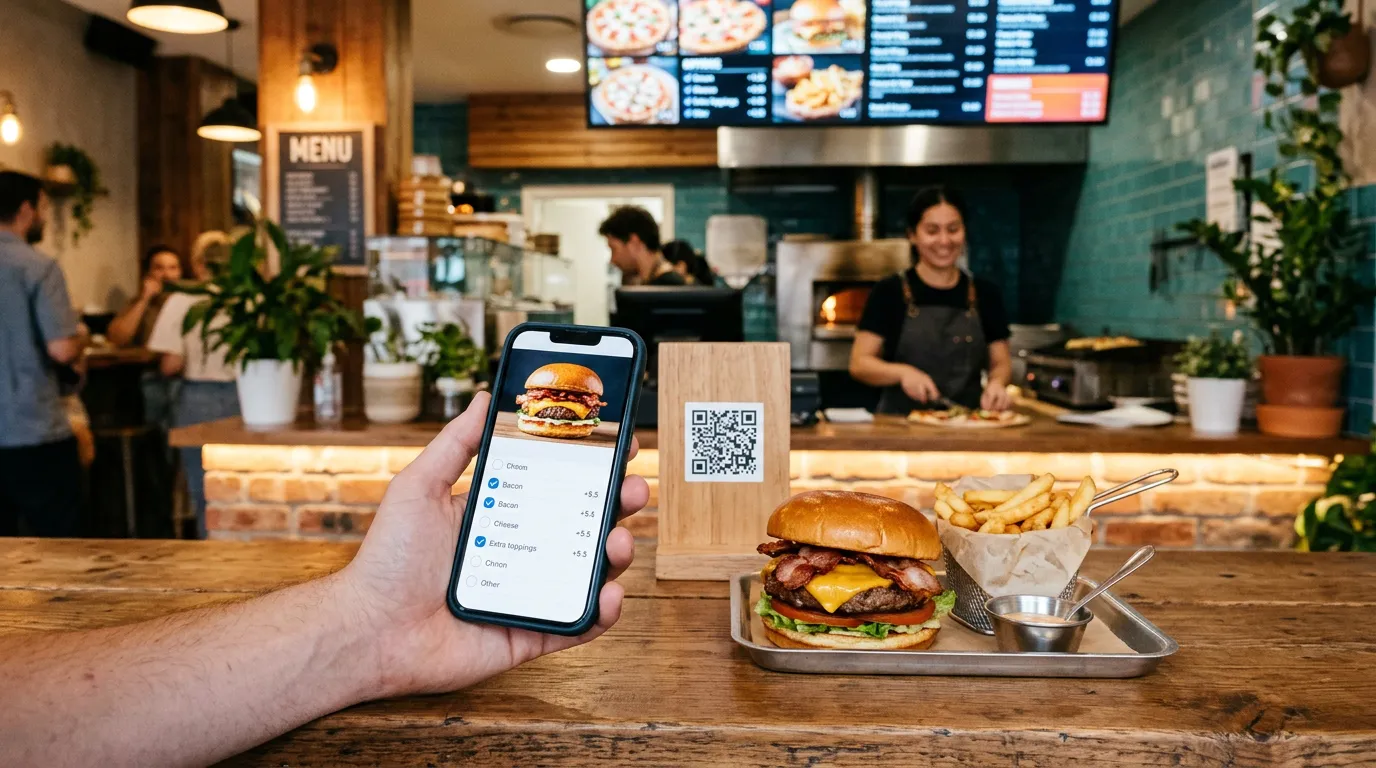
They scan a QR code, open your menu, tap an item, and choose their size, toppings, and extras. The price updates as they choose. When they're done, the order goes straight to you with every choice listed.
That's much clearer than a customer reading a long order at the counter, and much faster than taking it over the phone. Our comparison of QR code ordering vs. phone orders explains the difference in more detail.
Place your QR codes where customers decide what to order: on tables, at the counter, in the front window, and on takeout bags. Our guide on where to put QR code menus has more ideas.
How to Add Toppings and Extras in Billiie
With Billiie Digital Menu Ordering, customers order from their phone browser. There's no app to download.
Here's how options work:
- Add prices to each item. Give an item one price, or several named prices like "Small" and "Large" or "Roll" and "Hero." Customers choose one.
- Add toppings to a category. When you create or edit a category, choose to add toppings, then enter each topping's name and an optional price.
- Add extras to a category. Do the same for extras, such as sides, drinks, or additional protein.
- Let customers choose. When a customer taps an item, they tick the toppings and extras they want, choose a quantity, and can add special instructions.
- See every choice on the order. Each order shows the item, size, every topping and extra with its price, and the customer's note.
Toppings and extras are set once per category, so every item in that category shares the same list. Order totals are calculated from the prices on your menu, so customers always pay the amounts you set.
You also get order numbers, sound alerts for new orders, and ready-for-pickup notifications, all for $20 per month.
Common Mistakes to Avoid
Too many options. Long lists slow customers down. Keep the ones people actually order.
Unclear names. "Add-on 1" means nothing. Use names customers and the kitchen both understand.
Missing prices. If something costs extra, show the price before checkout.
Outdated options. Remove toppings you no longer stock so customers can't order them.
Options on the wrong category. Make sure drink sizes don't show up on sandwiches.
No room for notes. Some requests won't fit a list, so let customers explain.
Show Your Add-Ons on Screen Too
Your in-store screens can promote the same add-ons customers see on their phones.
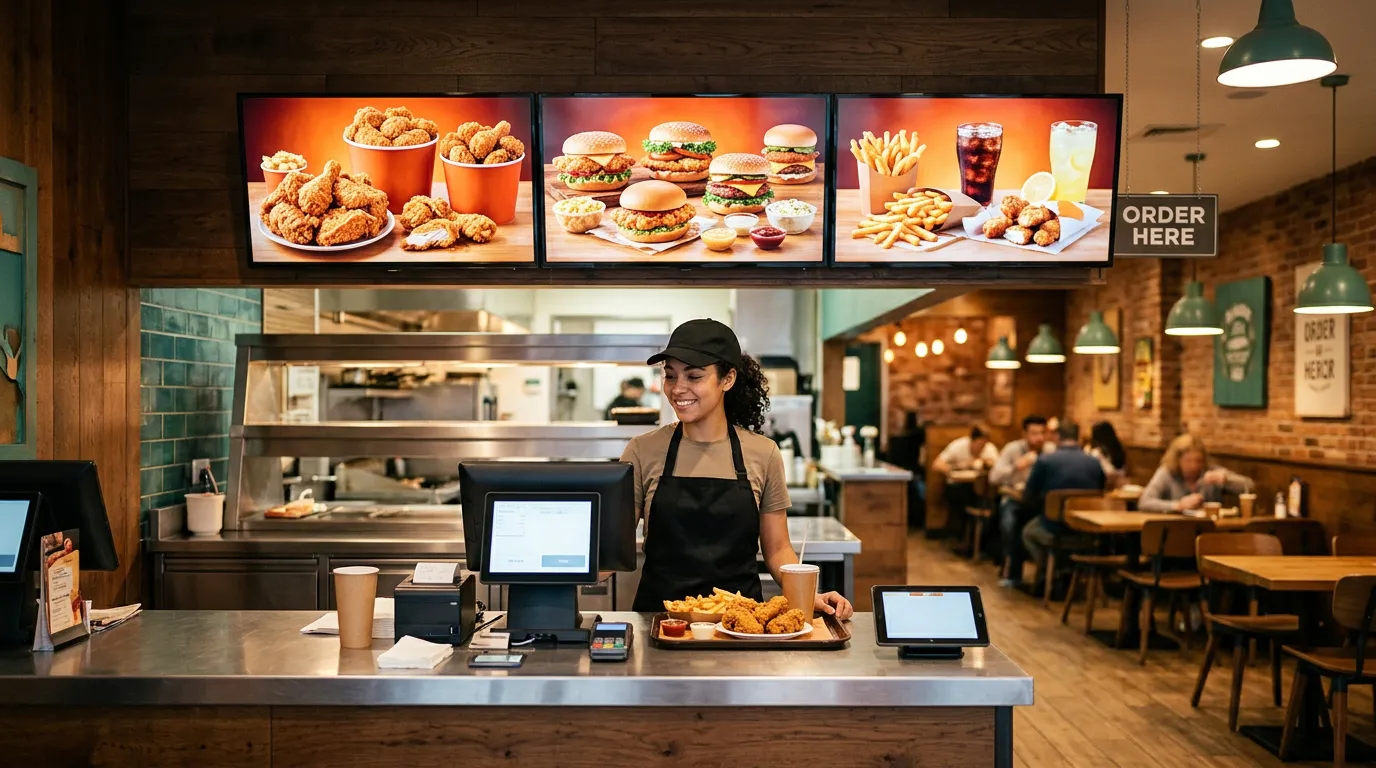
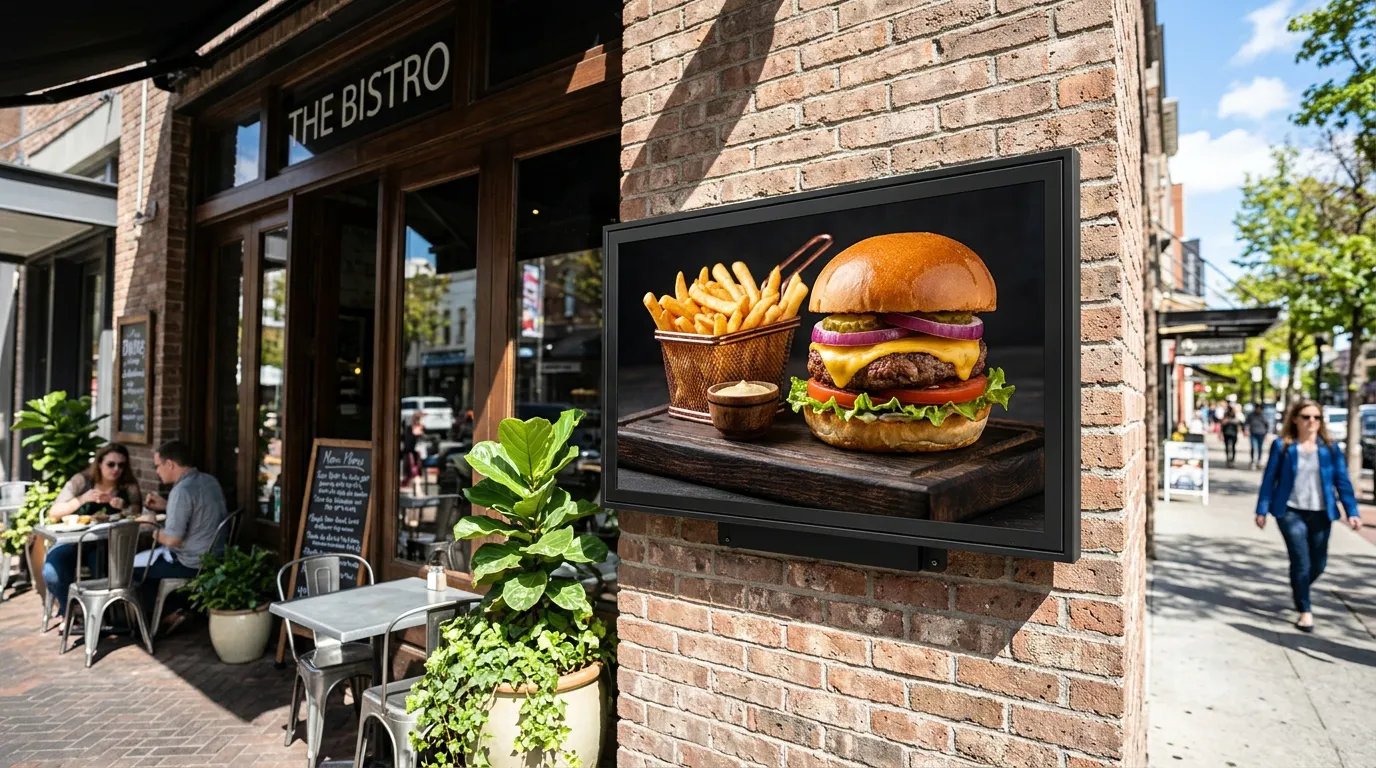
A menu board can show "Add bacon for $2" or "Make it a meal for $4" next to your best sellers. A screen along the ordering line can highlight new toppings or seasonal extras. Our menu board design tips cover how to make those offers easy to read.
With Billiie Digital Signage, your first screen is free, and each additional screen is $1 per month.
Start With Your Best Sellers
You don't need to add options to every item on day one. Start with your three or four best-selling items, add the toppings and extras customers ask for most, and price the ones that cost you money.
Once customers start using them, you'll see which add-ons sell and which ones to drop.
For more ideas, see how restaurants use digital signage, or compare our plans. Create your Billiie account and start taking customized orders today.

Ready to bring Billiie to your business?
Manage your screens, content, and locations from one simple dashboard.
No commercial signage hardware neededPowered by Billiie