Digital Signage Screensaver Turning On? How to Keep Your Billiie TV Running
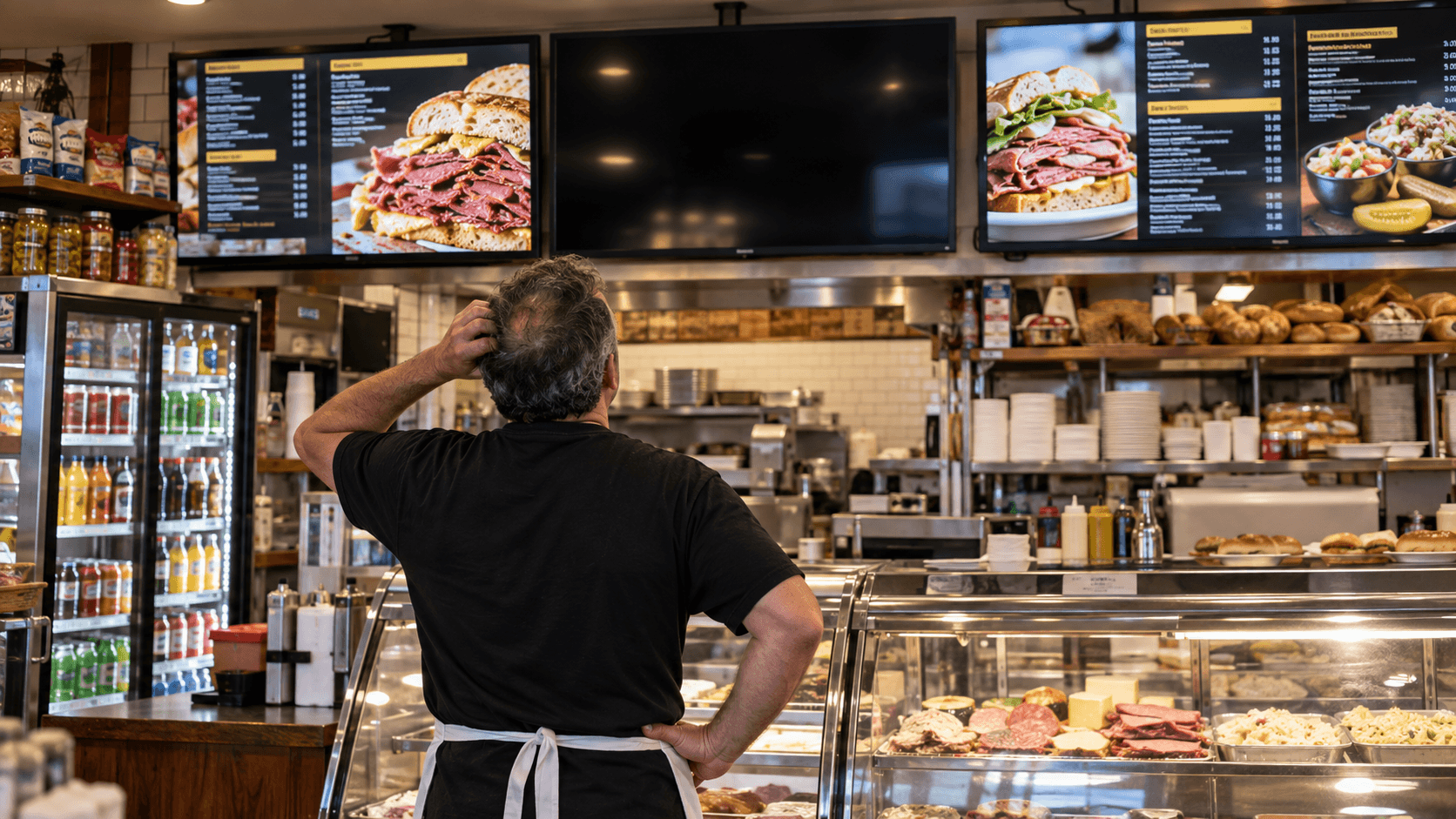
You’ve uploaded your menu to Billiie, paired the TV, and everything looks great. Then you glance up during the lunch rush and see a screensaver instead of your specials—or a blank screen where the menu should be. It’s frustrating, especially when customers are trying to order.
If your digital signage screensaver keeps appearing, the cause may be a setting on the TV or the device running Billiie. Sleep timers, automatic power saving, and screensavers can interrupt a display that needs to stay visible throughout the day.
For restaurants using Billiie digital signage, a working menu screen helps customers see what’s available when they’re ready to order. This guide walks you through what to check on a Fire TV or Android TV setup, one setting at a time. We’ll start with the most common reasons a digital signage screen keeps turning off, so you can get your Billiie content back in front of customers.
What Is a Screensaver?
A screensaver is an image, animation, or blank display that appears when a TV or streaming device thinks it has been inactive for a while. On a TV used for entertainment, that may be harmless. On a Billiie menu board, it can cover the menu your customers need to see.
A screensaver does not always mean the TV has turned off. If you can still see a clock, artwork, or moving images, the screen is on, but the TV or streaming device has stopped showing Billiie. If the display is completely black, a sleep timer or power-saving setting may also be involved.
The first step is to notice what appears on the screen when your menu disappears. That clue will help you find the right setting to change.
What Is a Screensaver Used For?
A screensaver gives your TV something to show when it has been idle. It may display photos, artwork, or a clock; some devices eventually dim the screen or enter sleep mode to save power.
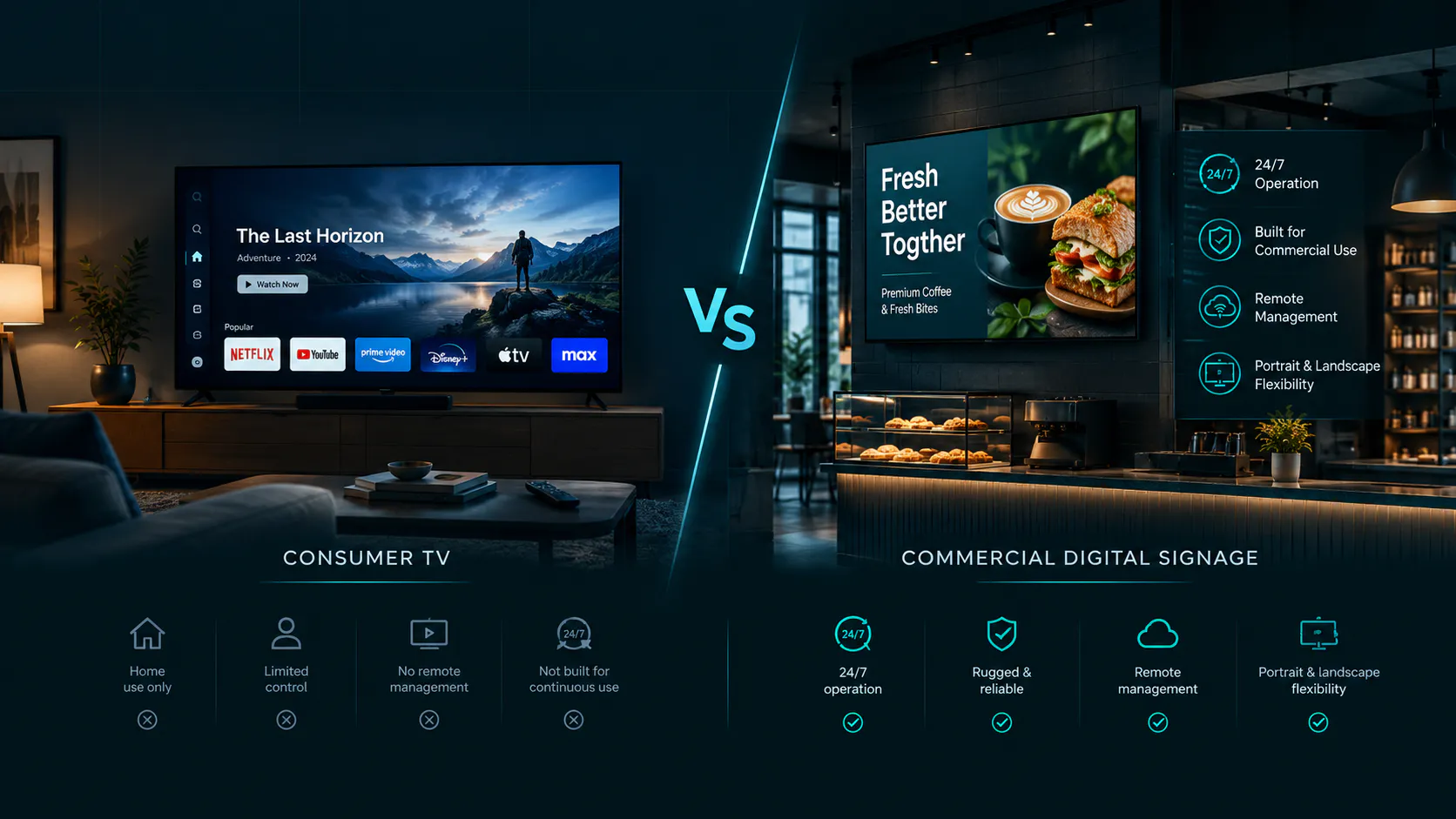
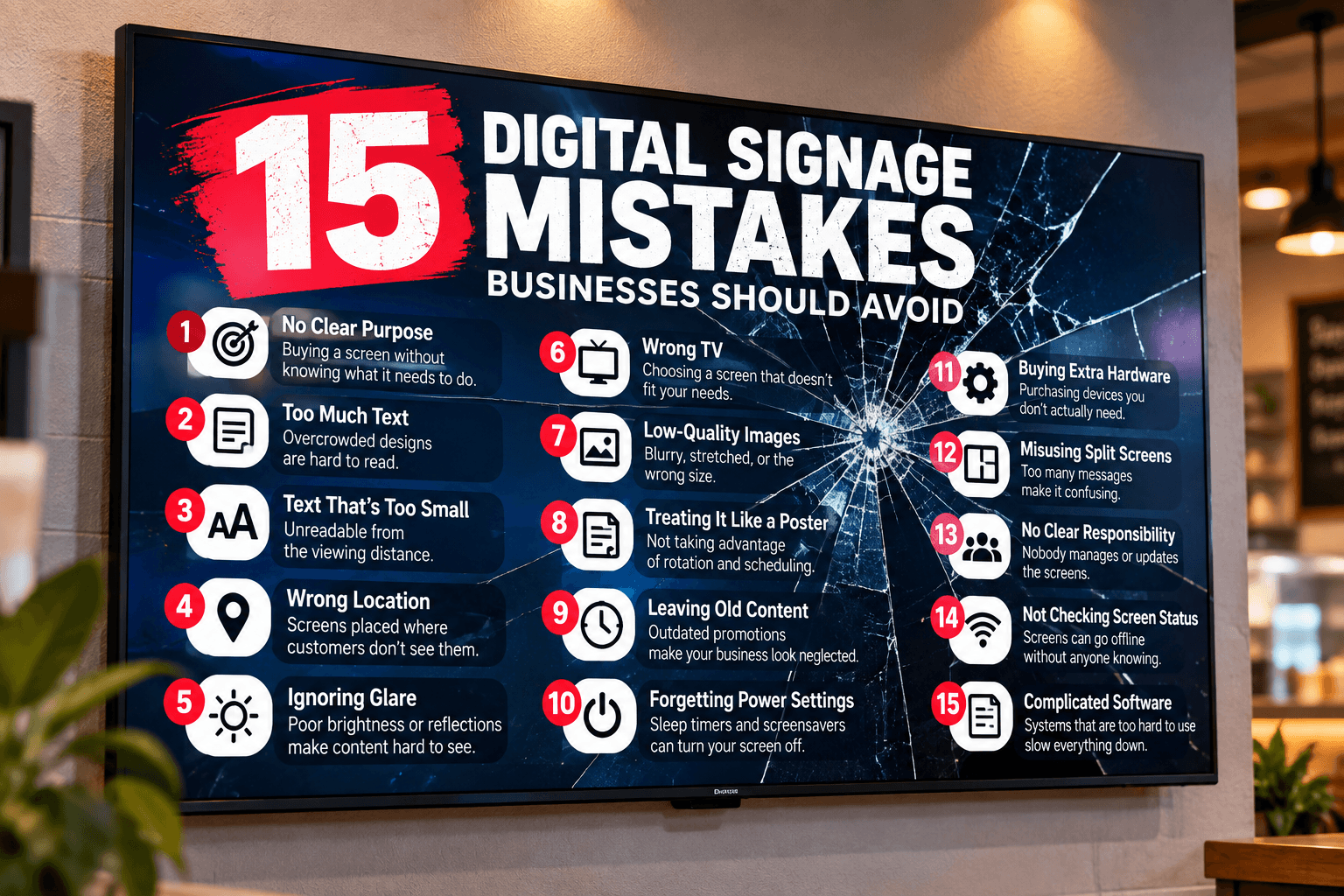
That behavior makes sense for a TV at home. For a business using Billiie, it can interrupt a digital menu or promotion during opening hours. That’s why you should check the screensaver settings on both the TV and any connected Fire TV or Android TV device.
How to Turn Off a TV Screensaver for Digital Signage
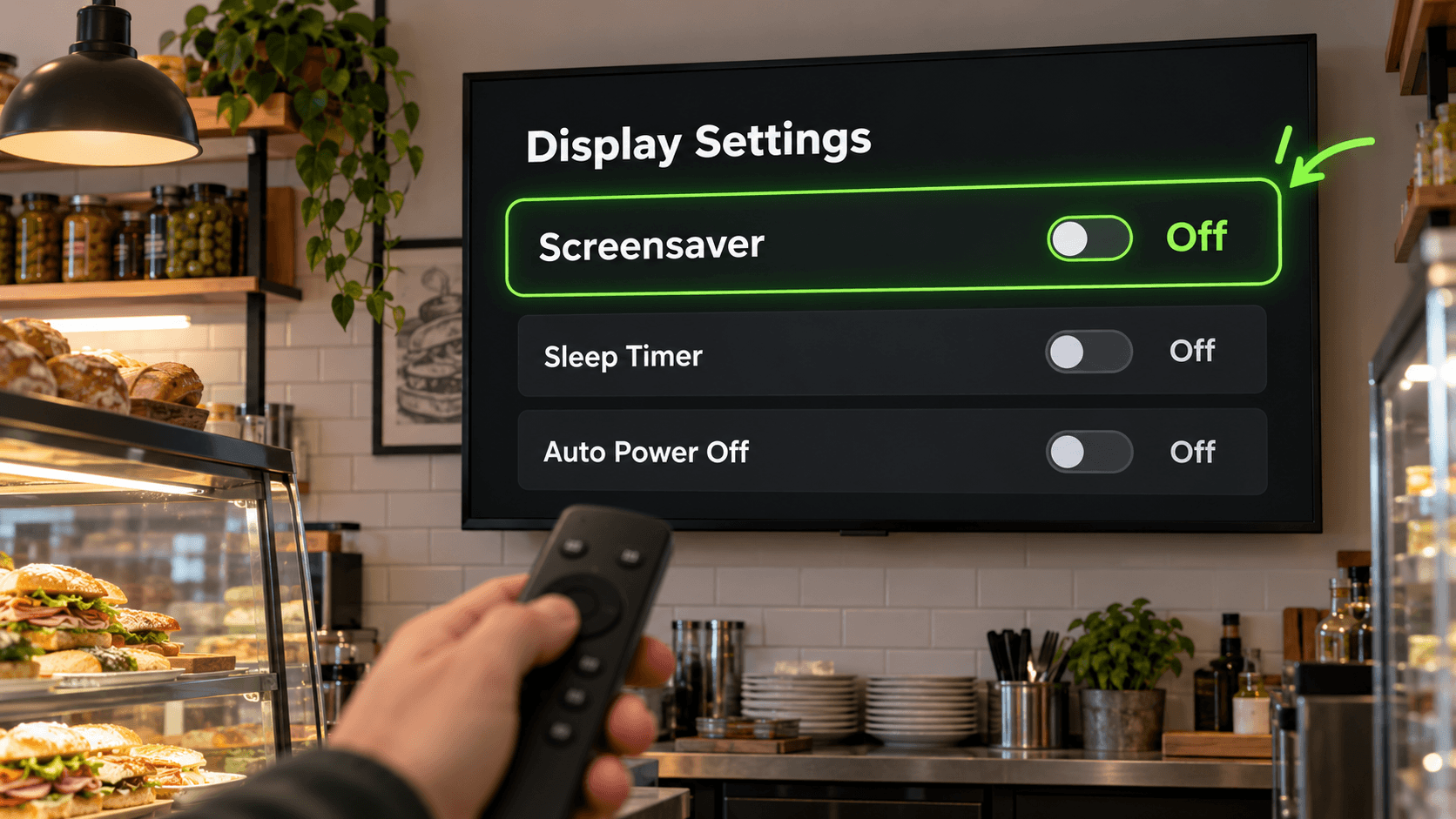
If a screensaver is covering your Billiie menu, start by checking which device is showing it. A TV and a connected Fire TV Stick can each have their own screensaver settings. Use the remote for the device that displays the clock, photos, or artwork.
On a Fire TV Device
From the Fire TV home screen, open Settings → Display & Sounds. Look for Screensaver or Ambient Experience, then turn it off or set its start time to Never if that option is available. Menu names vary by Fire TV model.
On an Android TV or Google TV Device
Open Settings, then look under System for Ambient mode or Screensaver. Turn it off if your model allows it, or adjust when it starts. Google TV lists Ambient mode under Settings → System → Ambient mode.
Check the TV’s Settings Too
If you use a separate streaming device, open the TV’s own settings as well. Look for Sleep Timer, Auto Power Off, and Energy Saving. A black screen may be caused by one of these power settings rather than a screensaver.
Once you’ve changed the settings, reopen Billiie and leave the menu running long enough to see whether the interruption returns. If it does, note whether you see artwork, a “Still Watching?” message, or a completely black screen—that will point you to the next setting to check.
Keep Your Billiie Screens Ready for Customers
A screensaver appearing during business hours usually means it’s time to check the settings on your TV or connected device. Start with the screensaver or Ambient mode, then check the sleep timer and automatic power-off settings. If your digital menu board keeps turning off, remember that the TV and a connected Fire TV Stick may have separate settings.
After making a change, leave Billiie running through a normal business day and see whether your menu stays visible. A few minutes spent checking the setup can save you from finding a blank screen during your next rush.
Ready to put your TV to work? Create your Billiie account and start displaying your content.
Ready to bring Billiie to your business?
Manage your screens, content, and locations from one simple dashboard.
No commercial signage hardware neededPowered by Billiie